
Swipe Pages Review: 5+ Years Building Landing Pages
Last updated: November 12, 2026
Yes, Swipe Pages is worth it if you want good-looking landing pages you can build quickly without a developer. Swipe Pages is a drag-and-drop landing page builder with 150+ templates, an AI page builder, and integrations like Zapier. We've used it at Michael Lamb Agency since December 2020, and this Swipe Pages review is based on that firsthand use.
Michael Lamb Agency stands 100% behind its reviews. We only share honest, truthful reviews of the products and services we use.
Affiliate disclosure: Michael Lamb Agency may earn a commission if you sign up through this link, at no extra cost to you.
Our verdict: I recommend Swipe Pages for people who want to build and reuse landing pages, connect forms to other tools, and make changes without starting over. My main caveat is practical: do the building on a desktop. And if you're not comfortable creating digital assets, get help rather than assuming the software will do everything for you.
I found Swipe Pages online and tested it alongside several other builders. What stayed with me was how easy it felt to swap a banner, a logo, a content section, or a call to action button linked to a payment solution. I wanted a tool I'd actually use, not one that just sits.
Who is Swipe Pages for?
For me, the fit is strongest when you have an offer or a clear purpose for a page. You might need a contact form, a booking page, or a destination for an event advertisement. You want to get it built, make it look like your brand, and connect the next step.
It's also useful when you work with multiple brands or products. Building the first page takes thought. Repeating the same design work for every variation shouldn't mean rebuilding everything.
For a Connecticut business weighing a do-it-yourself approach, I'd focus less on the number of features and more on whether you feel comfortable making that first useful page.
What do we build with Swipe Pages?
We use Swipe Pages for lead forms, contact forms, booking forms, and pages for event advertising. Those are everyday jobs, and being able to work quickly matters more to me than having a complicated process.
I've also built multi-page client portals. Adding pages makes it possible to bring different resources together, including documents and embedded YouTube videos. That's a different use from a single lead-generation page, but it's been useful for clients who need access to several things in one place.
A client portal landing page can be the starting point for those resources. I'm describing the pages I've built, not promising a particular login system or document-security feature. If private access is part of your project, get those requirements checked before choosing your setup.
An unnamed Hartford-area client example
I worked with a client that does a lot of marketing at a well-known sports facility in the Hartford area. They wanted a landing page where visitors could learn about both their services and the facility.
The form mattered as much as the page design. They wanted each submission sent to them and also to their customer. We set that up and designed the page around what they needed. It was successful.
I don't have specific numbers to share. That example matters because the page handled a real communication requirement, not because I can attach a conversion percentage to it. Figuring out who receives the inquiry is worth discussing before the layout.
Swipe Pages templates: 150+ and how we reuse them
There are more than 150 premade templates, and the drag-and-drop builder makes them approachable. But the biggest benefit for me isn't just choosing a template. It's being able to reuse something I've already created.
Once I have the frame for a service or product, I can copy the page, use it as a template, and edit the copy. That makes the output quicker when I'm working across different brands or products.
I don't have to rethink where every section goes. I can concentrate on the content and the changes that make this version right for its purpose. Changing colors and fonts is easy, too, so reusing a structure doesn't mean keeping another brand's appearance.
My advice is to pick the layout for the job in front of you. A booking page and a page explaining an event don't need identical content. Start with something close, then remove or replace what doesn't belong.
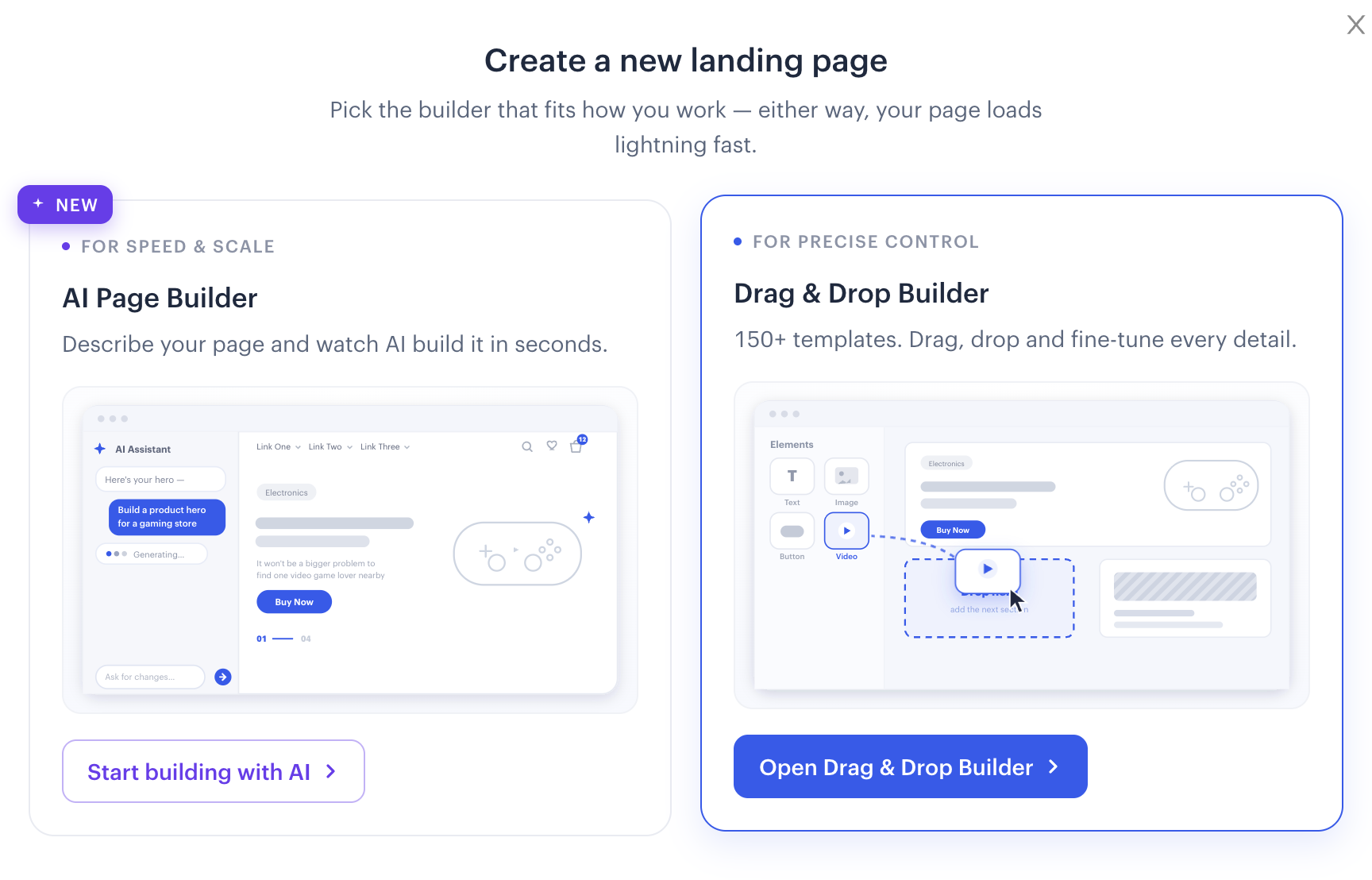
Swipe Pages AI page builder
The newer AI page builder is another option. I think the output is pretty outstanding when you already have a clear idea of what you want to build.
That condition matters. I'd start with the purpose of the page, who it's for, and what I want someone to do next. A prompt can give the builder direction, but it can't decide the real offer for you.
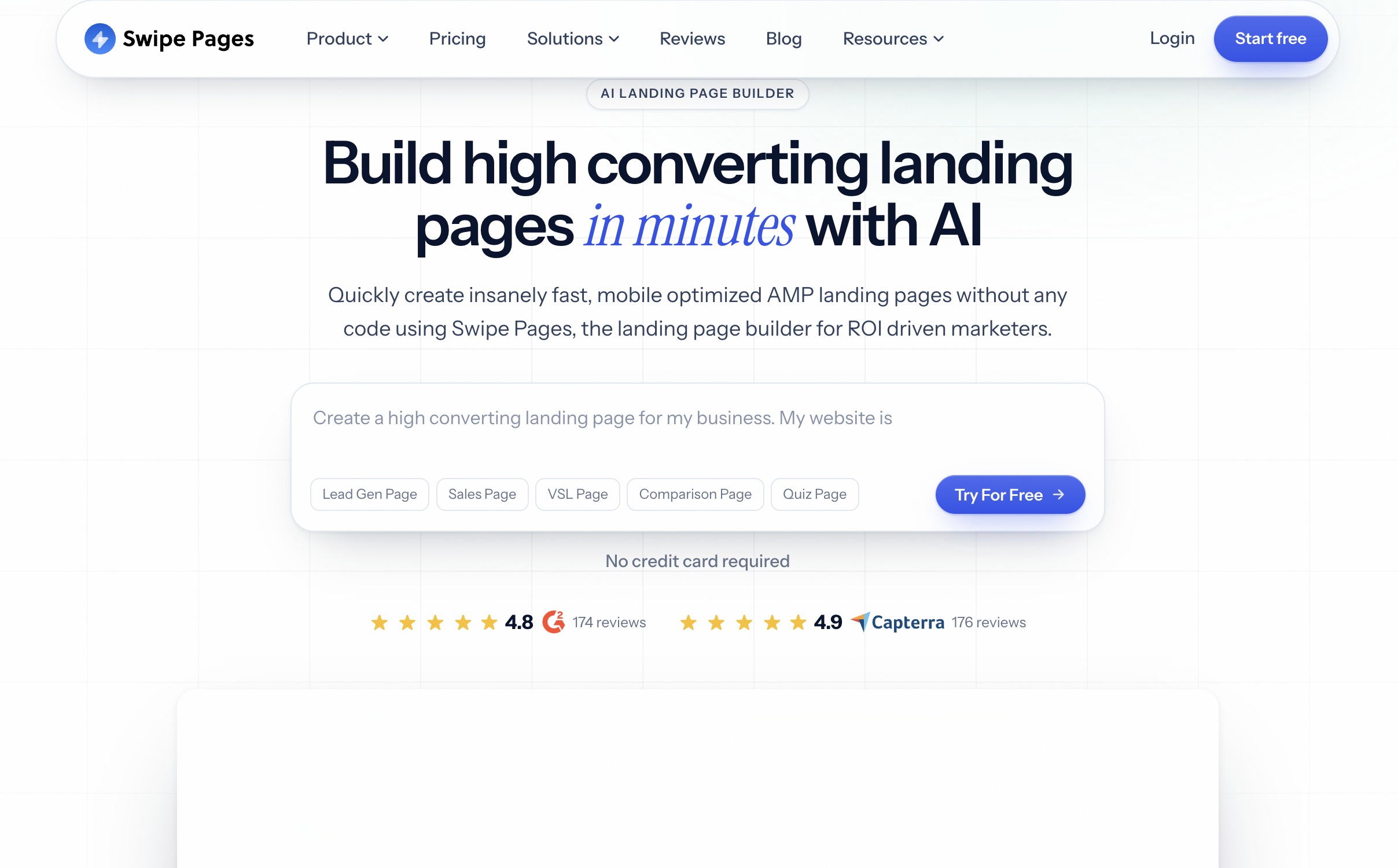
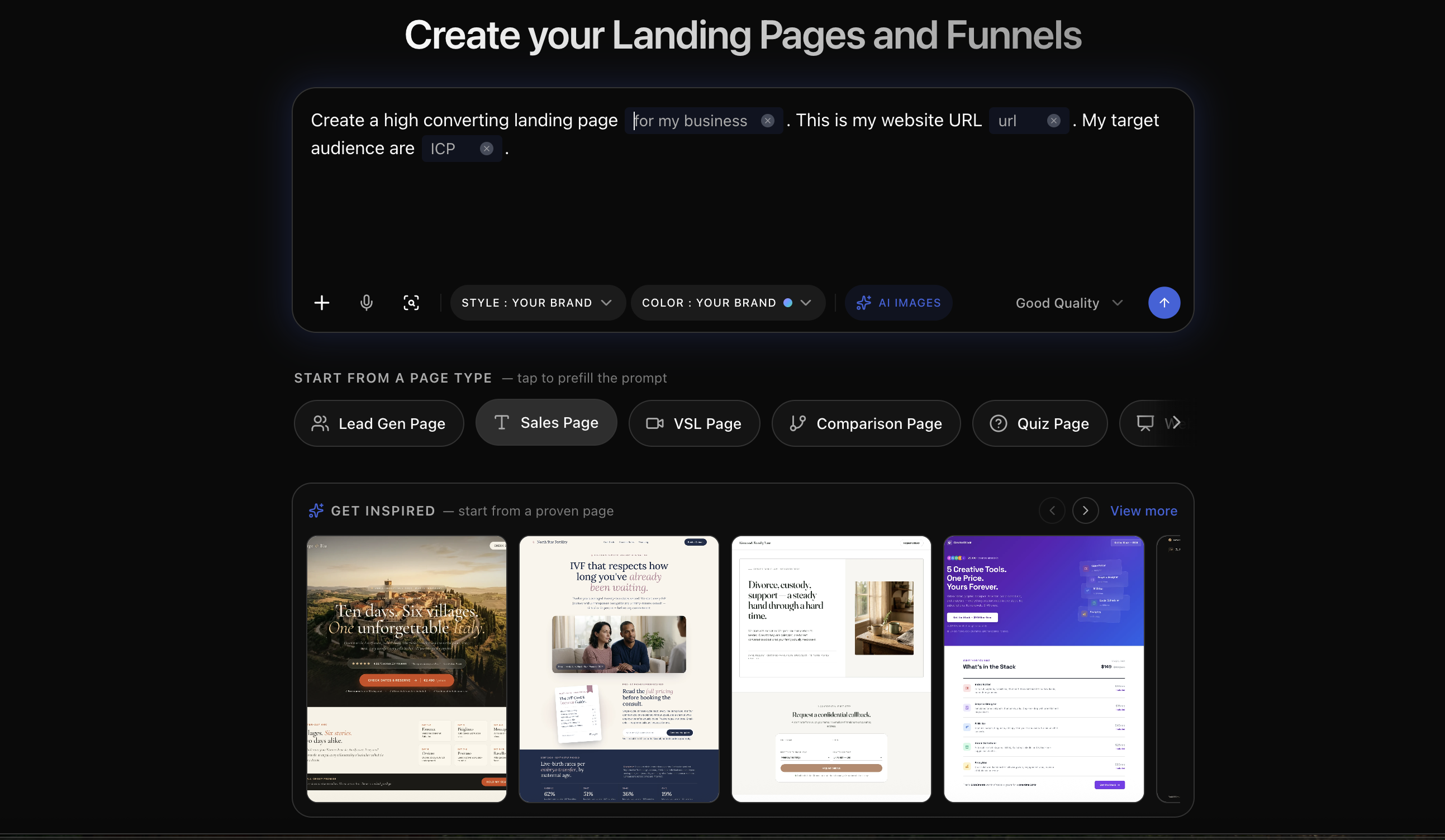
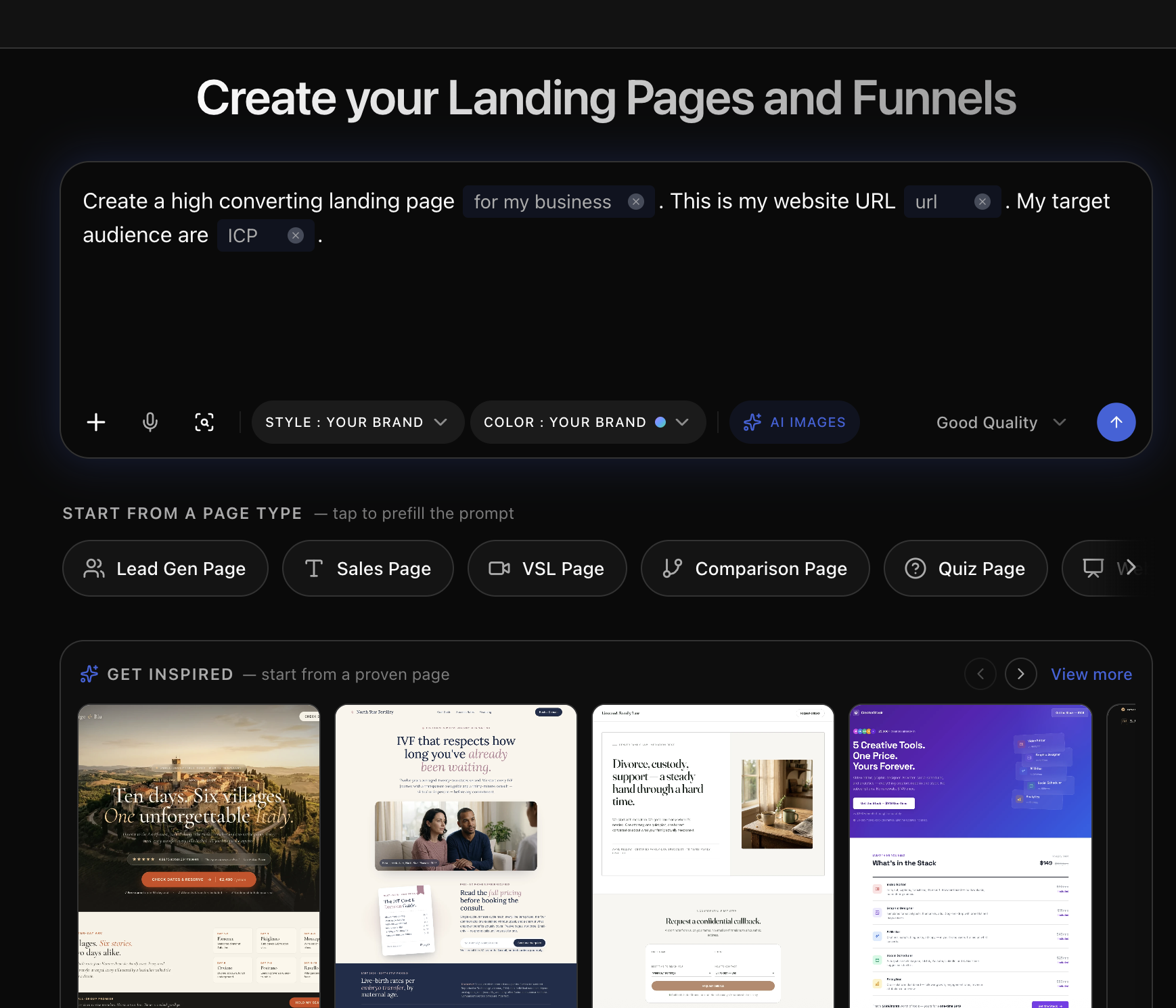
The page-type choices include Lead Gen, Sales, VSL, Comparison, and Quiz. I'd choose based on the action I need rather than trying every format. The AI route is a starting point, not a reason to skip reviewing the content and design.

Editing on desktop with live mobile and tablet previews
My main caution isn't a complaint unique to Swipe Pages. Landing-page work is much better on a desktop than on a phone. There's a lot to see and adjust, and I prefer having the whole workspace in front of me.
While I'm working on desktop, Swipe Pages lets me see tablet and mobile views. I can tweak those layouts in real time. That saves testing time because I can catch layout changes as I'm building instead of treating each view as a separate job later.
Colors, fonts, and design changes are straightforward in my experience. Custom code has worked well for us, too. I wouldn't describe code as a problem we've had with the tool, although very heavy scripts can slow pages down.
Connecting a domain has also been easy enough to do yourself. You don't necessarily need someone like me for that part. (If you ever need help, reach out to Michael Lamb Agency.)
A practical way to approach your first page
Based on what I use the tool for, here's the order I'd suggest:
- Decide whether the page needs a lead form, a booking action, a payment link, or access to resources.
- Start with a suitable template, an existing page you can copy, or a clear AI prompt.
- Swap in your logo, banner, content, colors, and fonts.
- Set up the form or button and decide where the information needs to go.
- Use the tablet and mobile previews to adjust the design while you're on desktop.
- Connect your domain and check the finished page and its next step.
That's a workflow recommendation, not a promise about how many minutes a first build will take. The reason I keep coming back is that making changes feels manageable.
Integrations and getting the inquiry to the right place
A form isn't especially helpful if its information doesn't reach the people who need it. That's why integrations matter to me as much as the page itself.
I've used Swipe Pages with Mailchimp and Constant Contact in the past. These days, we mostly use Zapier.
Does Swipe Pages work with Zapier?
Yes. We use that connection now, and the official pricing page lists a Zapier integration. If you're searching for "swipe pages zapier," that's the short answer from our own experience.
I'd still check your particular workflow rather than assuming every field and destination will behave exactly as you want. In the sports-facility example, the requirement was clear: the submission had to reach two recipients. Start with that kind of practical requirement.
Swipe Pages pricing: monthly and annual plans
Prices checked Nov 10, 2026, confirm on the Swipe Pages site.
These figures come from the official pricing page. The annual option shows a monthly equivalent, but you pay for the year in advance. That's not the same commitment as paying monthly.
| Plan | Billed monthly | Monthly equivalent, billed annually | Annual total | Custom domains | Monthly visitors | Monthly AI credits |
|---|---|---|---|---|---|---|
| Startup | $39 | $29 | $348 | 1 | 20,000 | 4,200 |
| Marketer | $89 | $69 | $828 | 5 | 50,000 | 8,400 |
| Agency | $199 | $149 | $1,788 | Unlimited | 500,000 | 21,000 |
All three plans list unlimited landing pages and funnels. That doesn't mean unlimited traffic or AI usage. Traffic beyond the allowance costs $5 for each additional 5,000 visits, billed in blocks of 5,000.
The site advertises annual savings of up to 25% and a full-featured 14-day trial with no credit card required. Included AI credits reset monthly; purchased add-on credits don't expire.
Marketer adds server-side A/B testing and personalization. Agency includes additional shared-management features, such as Global Blocks. I'd compare the domain, traffic, and collaboration requirements before choosing, not simply pick the largest plan because it has more features.
My Swipe Pages pros and cons
What keeps it in our toolkit
- The editor feels intuitive, and replacing individual components is easy.
- Copying a page and editing it for another brand or product speeds up the work.
- Colors, fonts, forms, and payment-linked buttons are comfortable to work with.
- Tablet and mobile previews make adjustments easier while building on desktop.
- They also provide very good support.
What I'd keep in mind
- I recommend desktop building rather than trying to do the whole job on a mobile device.
- Templates and AI still need a clear purpose and someone making decisions.
- Custom code works for us, but very heavy scripts can slow pages down.
- Pricing includes traffic and AI-credit allowances, so check the limits alongside the subscription price.
Who is Swipe Pages not for?
If you've never built digital assets and don't feel comfortable with tools like Canva or AI, I wouldn't assume you'll enjoy building everything yourself. Swipe Pages feels easy compared with other tools I've tested, but easy is relative to your experience.
You still need to decide what belongs on the page and how it should work. If that's unfamiliar territory, getting a professional involved can be the better route. You don't have to learn a builder just because it's available.
An agency like Michael Lamb Agency can help build it for you.
Alternatives: compare the job, not just the builder
I tested several landing-page tools before settling into Swipe Pages. I can't reliably name each one now.
I am not going to claim a personal comparison with Unbounce or Leadpages. Both are dedicated landing page builders, often used for paid traffic and conversion testing. Swipe Pages is the tool we have stayed with for forms, event pages, client portals, and reusing a page as a template across brands. If you are comparing them, judge the same job on each: can you build the page, reuse it, connect the form, and make changes comfortably?
Frequently asked questions
How much does Swipe Pages cost?
Startup is $39 monthly, Marketer $89, and Agency $199. With annual billing, the monthly equivalents are $29, $69, and $149. I recommend checking the current site and the allowances before subscribing.
Can I try Swipe Pages before paying?
Yes. The pricing page advertises a full-featured 14-day trial with no credit card required.
Does Swipe Pages work with Zapier?
Yes. We mostly use Zapier with it now. I've also used Mailchimp and Constant Contact previously. The official pricing page lists those integrations.
Can you build a client portal with Swipe Pages?
Yes. I've built multi-page portals with documents and embedded YouTube videos. If you're researching a Swipe Pages client portal, separate that resource-page use from any private-access requirements, which need their own checks.
Can I connect my own domain?
Yes. I've found the connection process easy enough to handle yourself. The current plans include one custom domain on Startup, five on Marketer, and unlimited custom domains on Agency.
Can I check mobile and tablet layouts while building?
Yes. I build on desktop and use the live tablet and mobile views to tweak what I'm creating. That's one of the ways it saves testing time for me.
My bottom line
Swipe Pages is one of our go-to tools because we can work quickly and comfortably. Since December 2020, I've used it for forms, event pages, and client portals, and the ability to copy and adapt a page keeps it useful across different projects.
I'd rather recommend a tool you'll actually use than one that looks impressive and sits untouched. If that sounds like the way you want to work, try it with a real page in mind.
This Swipe Pages review reflects why we keep it in our toolkit. You can also find Swipe Pages, and the other tools we use, on our Recommendations page.